Sections
The section page is a multi-output workspace rather than just a block of summary text.
A section can include:
- Section Markdown content
- A bound document list
- A section knowledge graph
- A section podcast
- PPT preview and download output
- Sharing, subscription, comments, and collaboration flows

1. Document binding is still upstream of the section workflow
Sections are still tightly bound to documents, but the impact is broader now.
When a document is added to a section, it does not only appear in a list. It may also trigger:
- Section Markdown regeneration
- Section podcast refresh
- Section PPT refresh
- Section knowledge graph changes
The main ways to add documents are:
- Select sections during document creation
- Add documents from the document panel inside the section detail page
If you are only a subscriber or a read-only member, you cannot modify the section or trigger these update paths.
2. Main areas on the section detail page
Markdown body
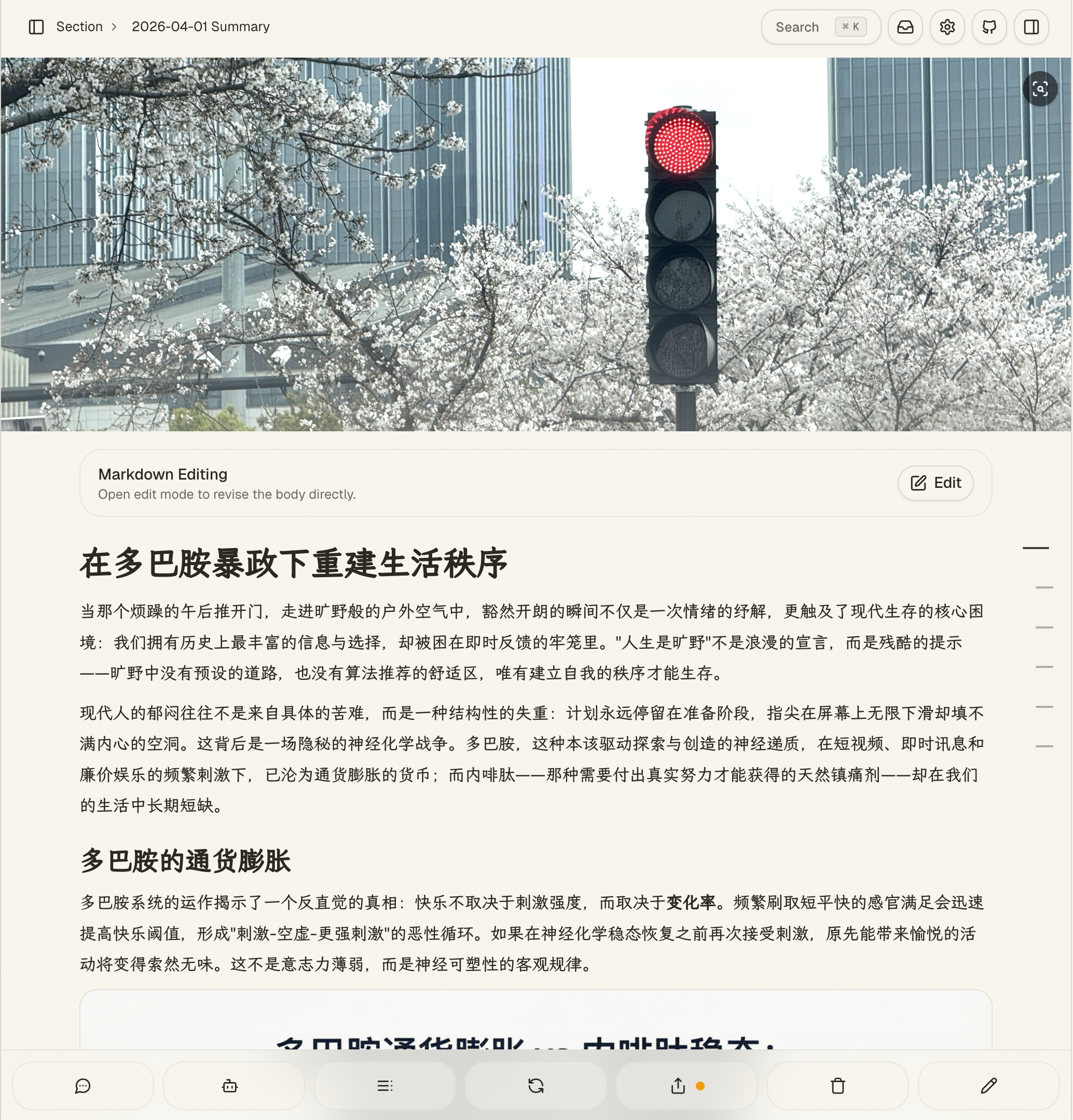
The main section content comes from a generated Markdown file.
If the section is still processing, the content area shows a processing skeleton. If the section uses scheduled processing and the next run has not happened yet, the page shows a waiting state instead of treating it as an error.
Document list
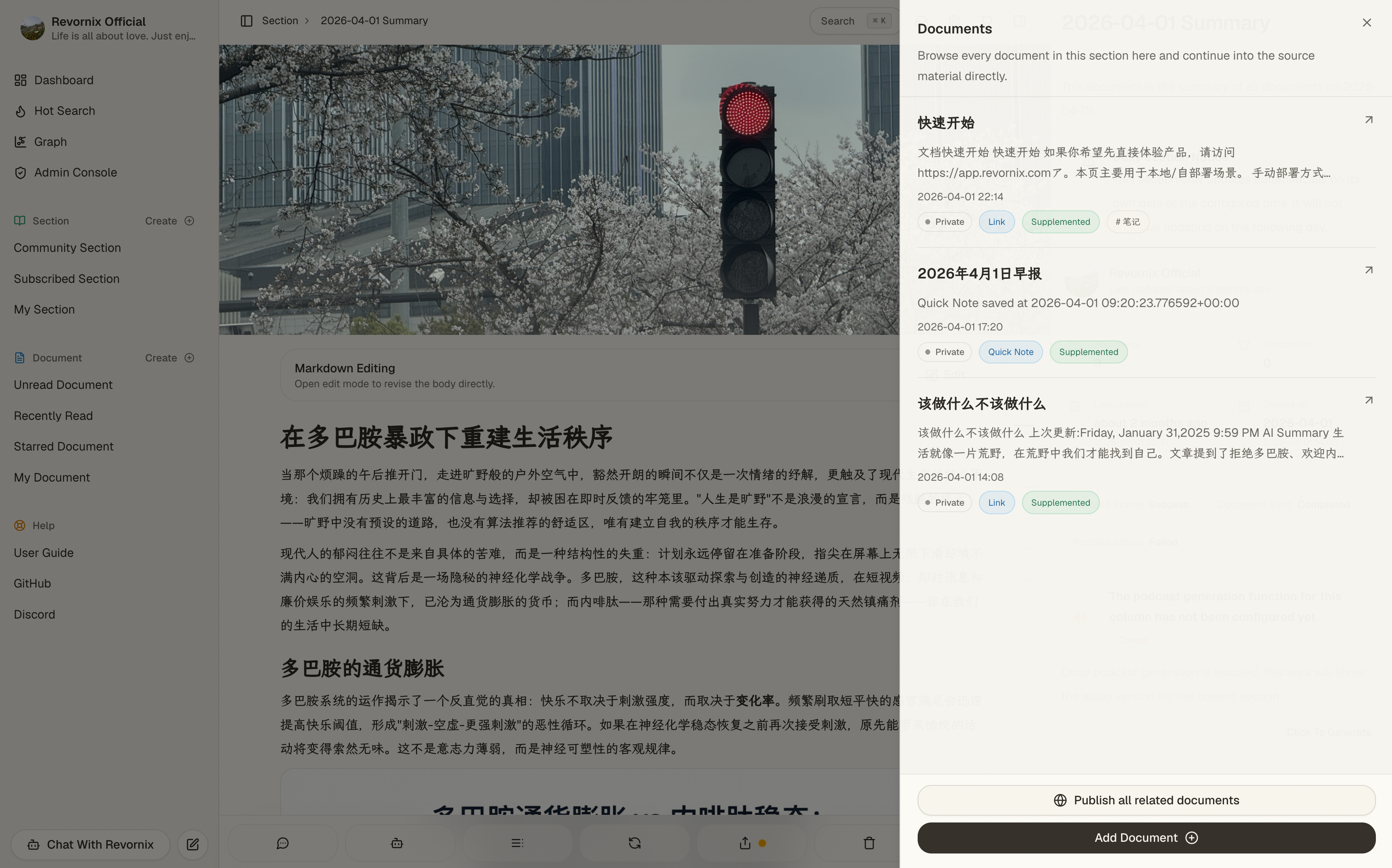
You can inspect the full set of documents inside the section and keep curating that collection.
In-section AI chat
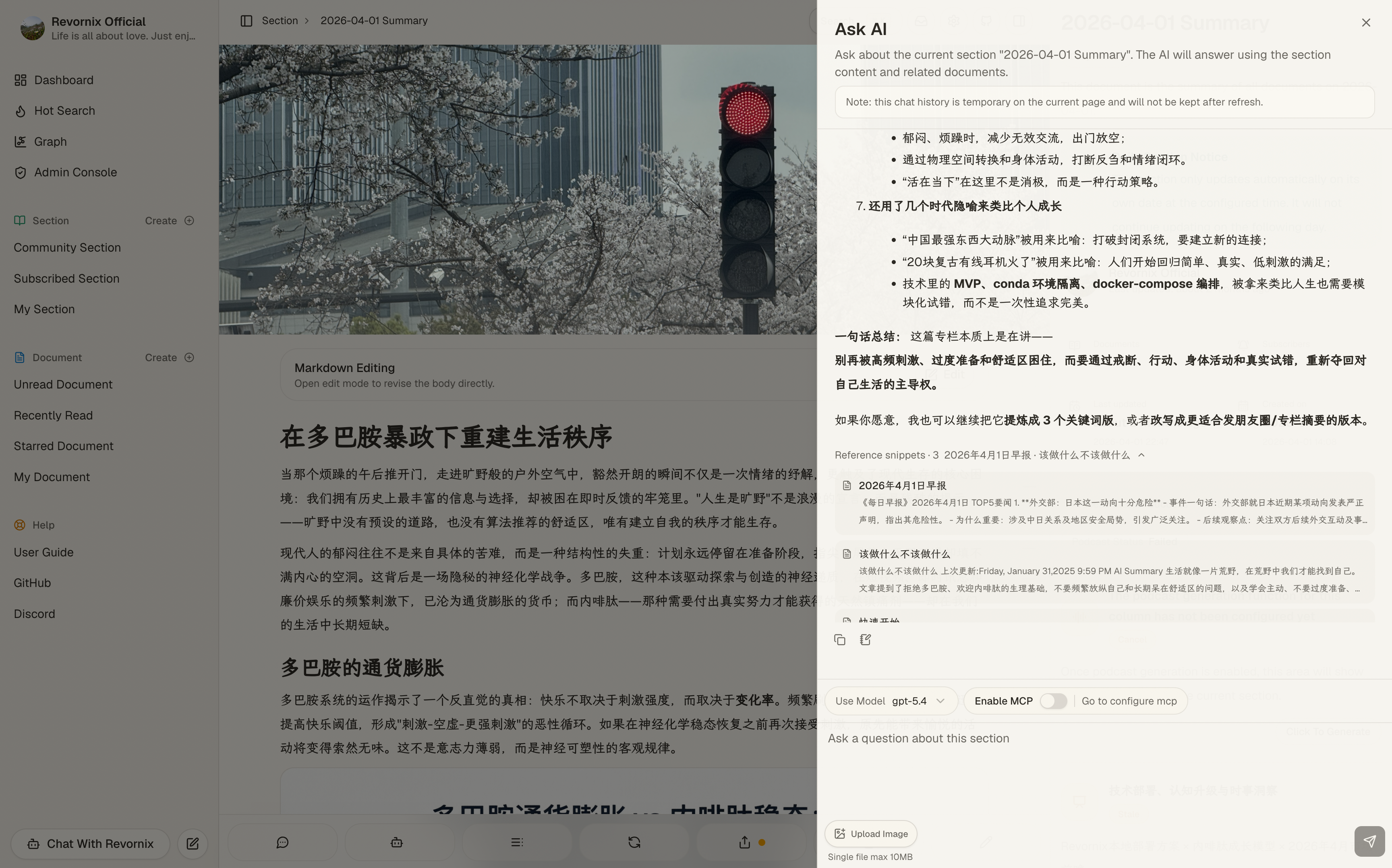
The product supports AI chat scoped to a section.
This is not limited to the final summary text. The system builds context from section Markdown, related document excerpts, vector retrieval, and graph expansion.
Comments, sharing, subscription, and collaboration
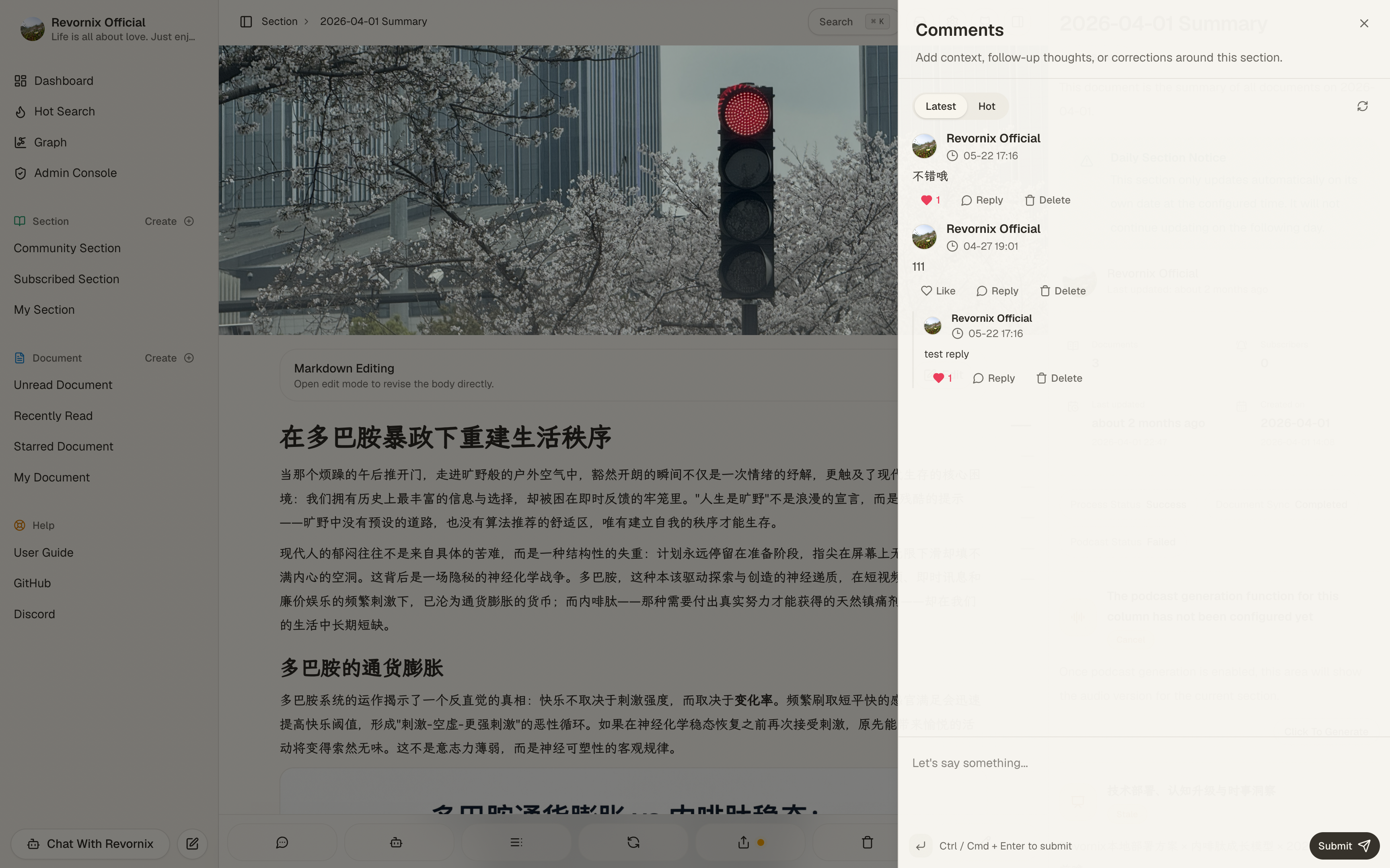
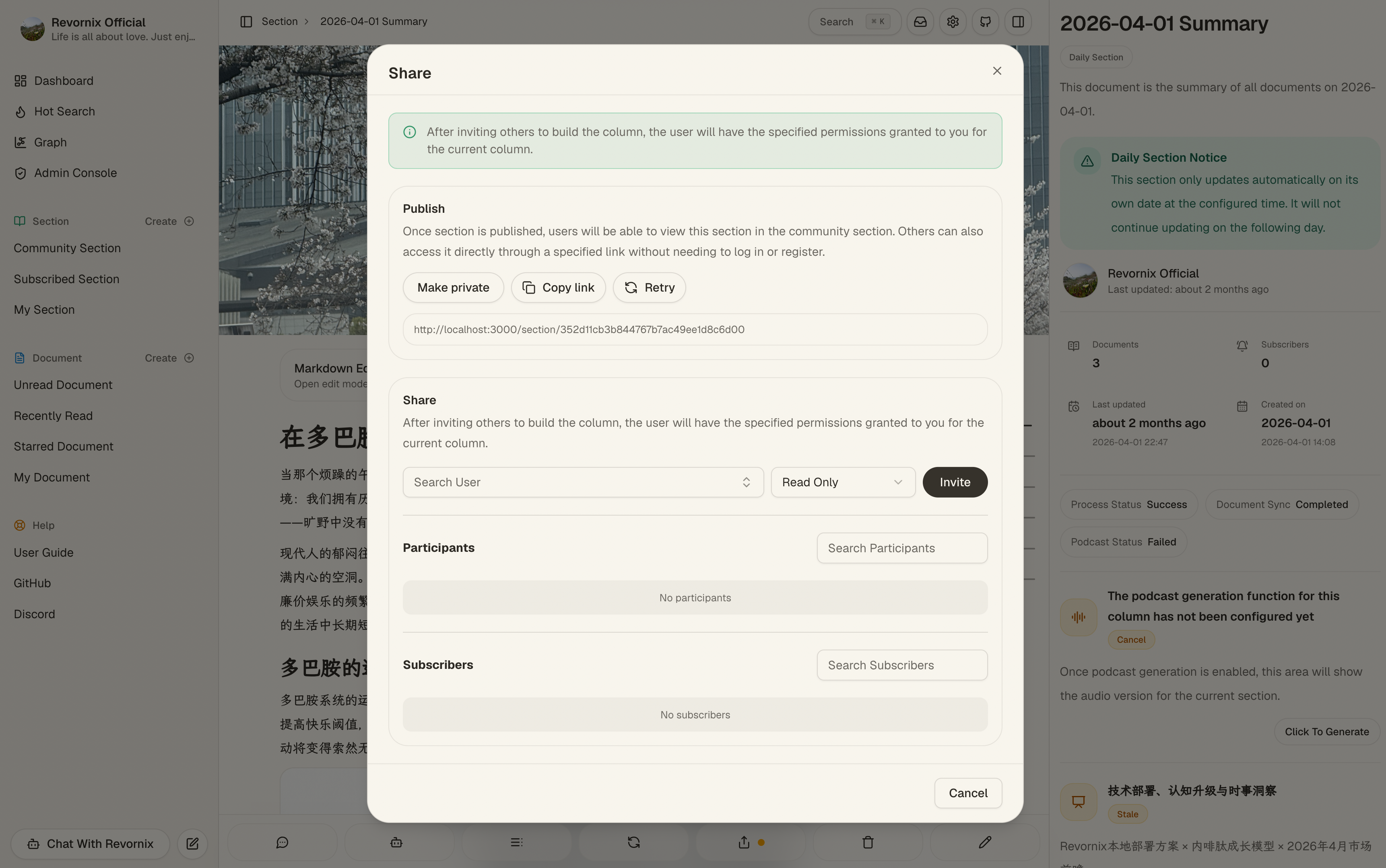
The section detail page also keeps the comment, share, subscribe, and member collaboration flows.
Together, these make sections usable both as private knowledge workspaces and as public or collaborative outputs.
3. Section podcast
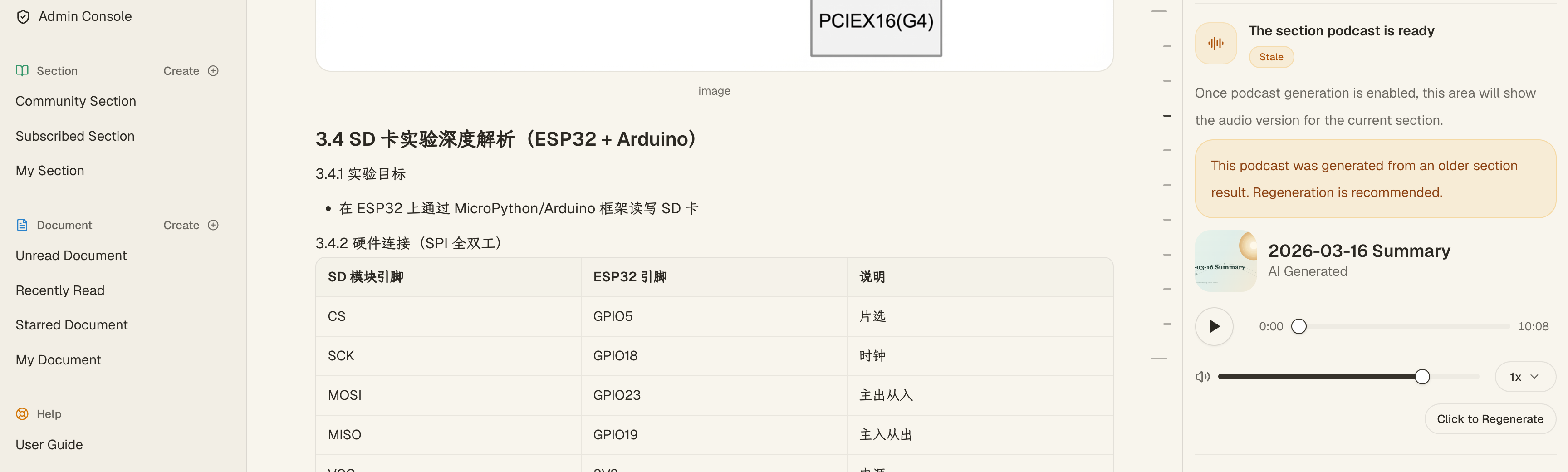
Sections can generate podcasts independently:
- If auto podcast is enabled, podcast generation continues after section processing
- If not, you can still submit podcast generation manually from the detail page
- If the section content has changed, the UI can warn that the current podcast is stale and should be regenerated
After success, the detail page uses the built-in player directly.
4. Section PPT
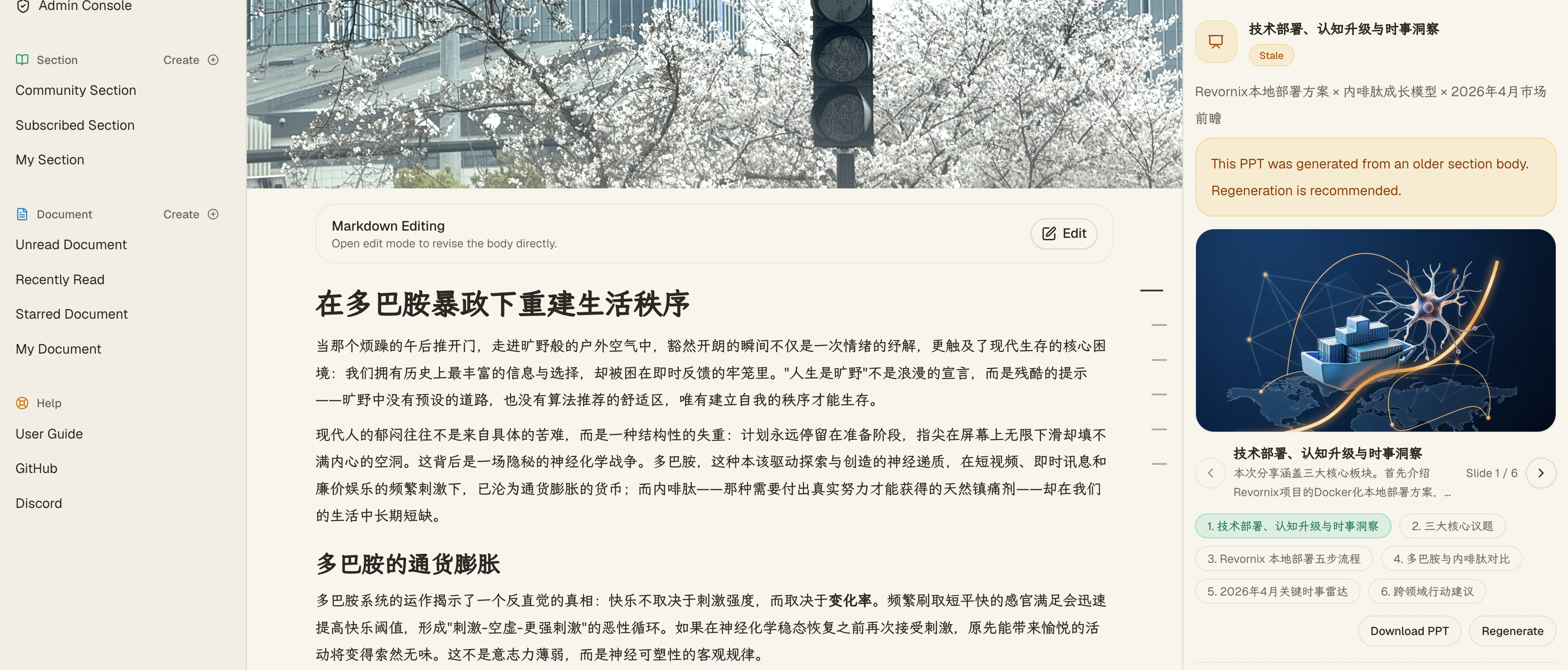
This is a real feature in the current product and should be considered part of the section workflow.
Sections can generate a PPT preview package from section content. In practice, that means:
- You can manually submit a PPT generation task
- While it is running, the UI can already show completed slide previews
- After success, the section detail page lets you browse the slides one by one
- Each slide preview image supports click-to-zoom
- If the backend has produced a
.pptxfile, the page exposes a download action directly
This capability depends on:
- An accessible default document-reading or summary model
- An accessible default image generation engine
- Existing usable Markdown content for the section
The main built-in image engine implementations currently available are:
Banana ImageBailian ImageVolc Image
For the exact config requirements of each one, see the engine guide.
If those conditions are missing, the product tells you what to configure instead of failing silently.
5. Section knowledge graph
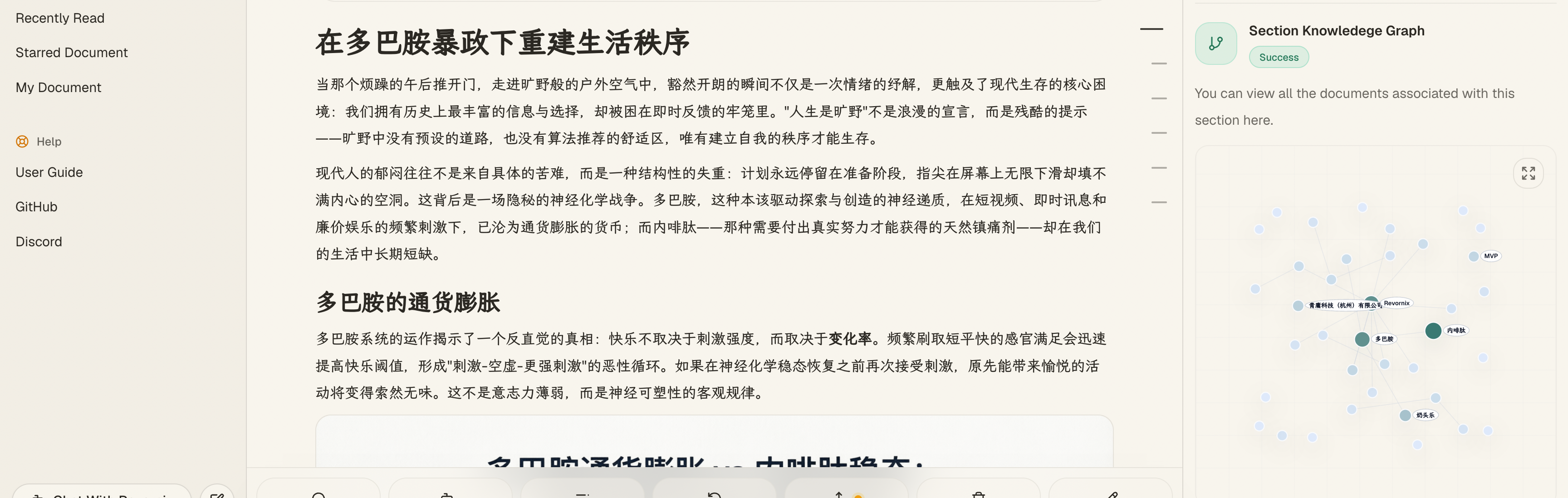
Each section still has its own knowledge graph.
But in the current workflow it is best understood as one part of the section’s aggregate outputs, because it refreshes along with changes in the underlying document set.
6. Browsing dimensions
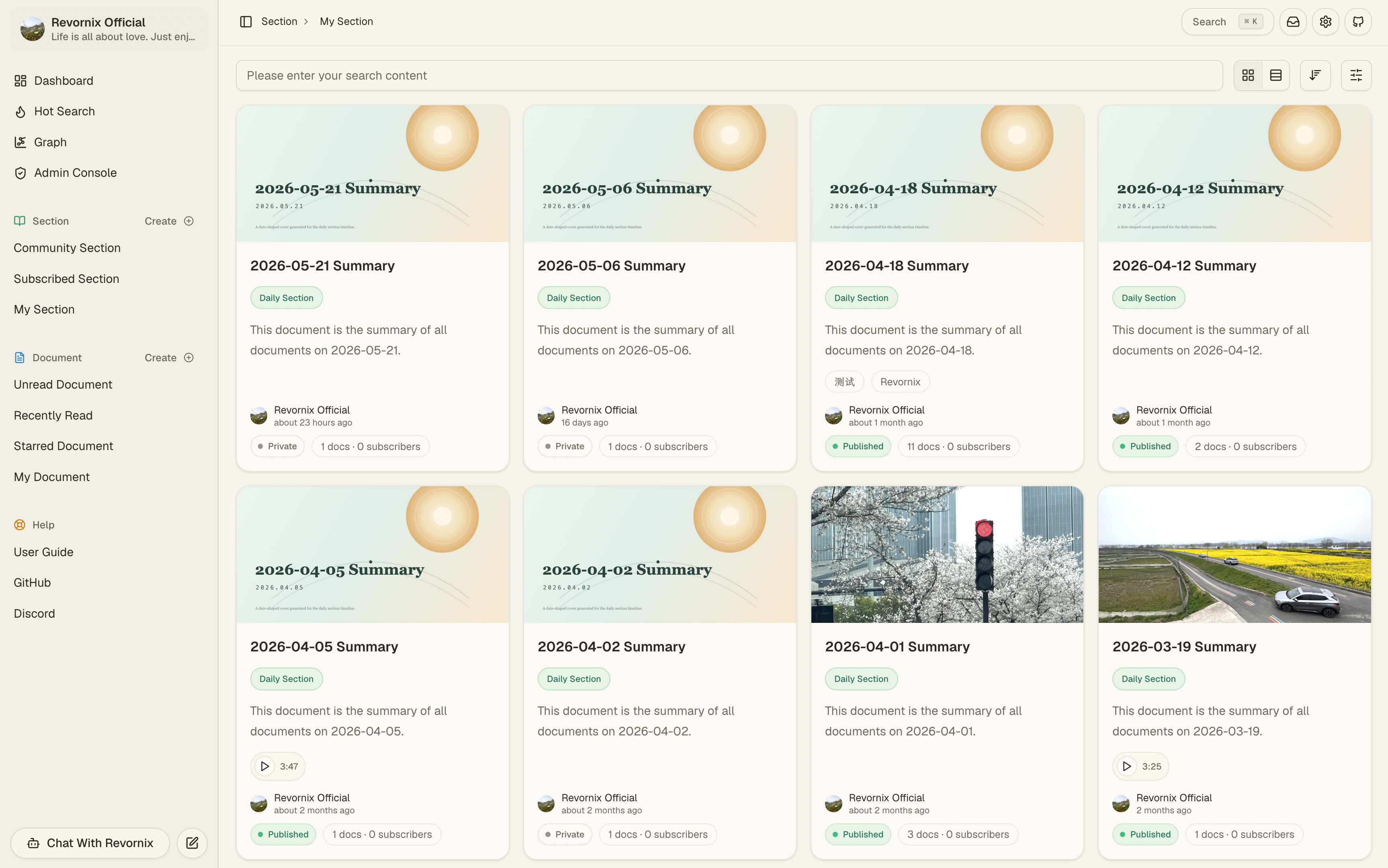
The section list pages support:
- My sections
- Community sections
- Subscribed sections
- Label filtering
- Title search
- Time sorting
So sections now serve both as personal workflow containers and as public-facing knowledge artifacts.
On the public community surface, section discovery also supports public labels and cross-links to related public documents and creators. This means a published section can work as an SEO entry point, a topic hub, and a collaboration artifact at the same time.