Document Management
Document management is no longer just “collect and read later.” A document can move through parsing, summarization, embedding, knowledge-graph building, podcast generation, and section updates, and the UI exposes those task states directly.
1. Document entry points
The create page supports four document entry types:
- Quick note
- Link
- File
- Audio
In practice:
- Quick notes support direct Markdown authoring and a write/preview switch before submission.
- The quick-note editor also supports full-page fullscreen editing for longer drafting sessions.
- Link documents depend on the website parsing engine.
- File documents depend on the file parsing engine. The upload flow accepts common document and presentation formats, including
pdf / doc / docx / ppt / pptx / jpg / jpeg / png. - Audio documents go through transcription first, then can continue into summary, graph, and podcast-related workflows. When meeting-record mode is enabled, the transcript also includes speaker separation and clickable timestamps.
Except for quick notes, most document sources continue through the product as structured Markdown content plus their original source metadata.
Document lifecycle sketch
2. Abilities you can configure at creation time
Creating a document usually means submitting both the source and some workflow choices:
- Labels
- Bound sections
- Auto summary
- Auto tagging
- Auto transcription for audio documents
- Meeting-record mode for audio documents
- Auto podcast
If you enter document creation from a section detail page, that section can already be preselected so the new document joins that section immediately.
3. The real workflow shown on the document detail page
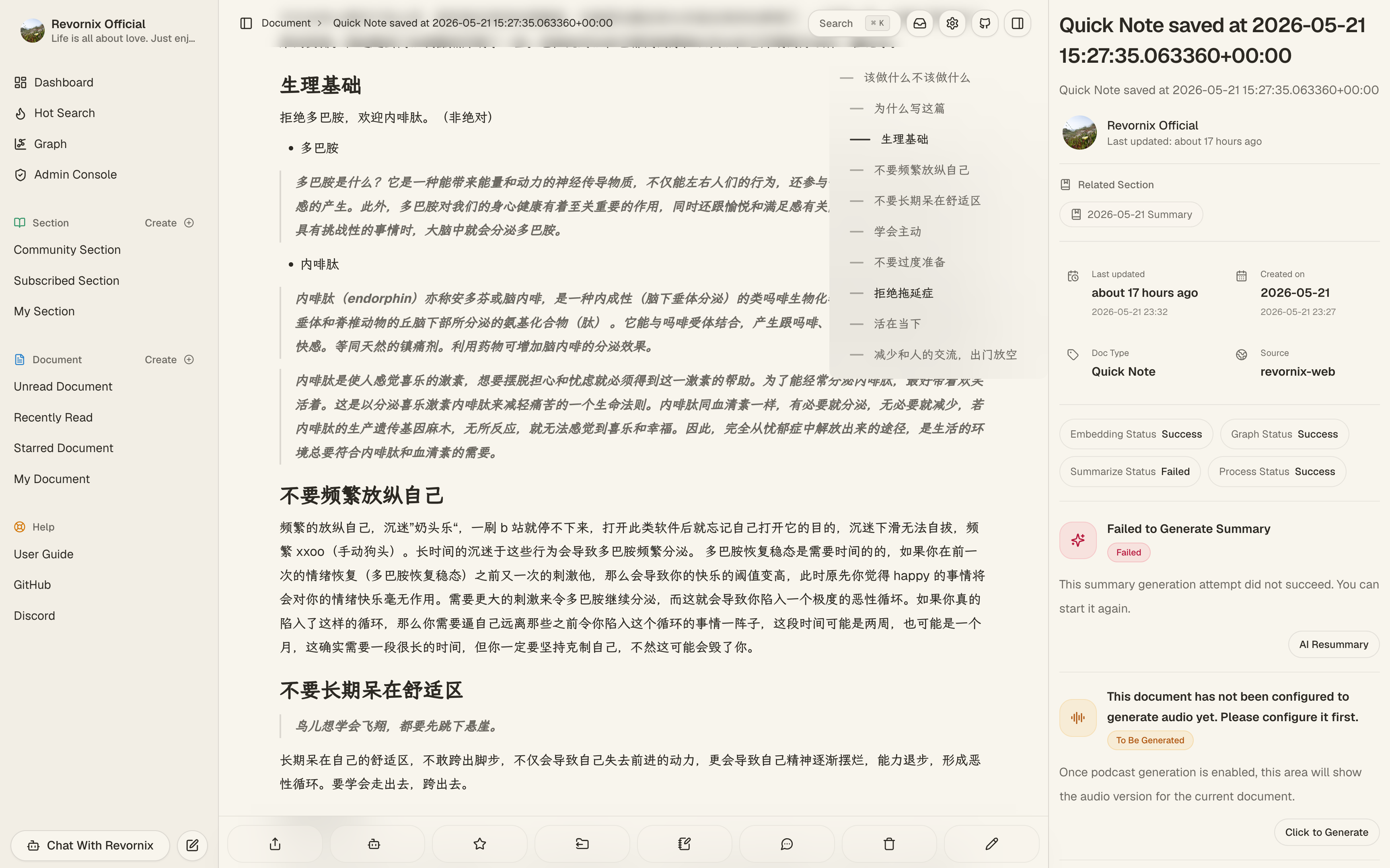
After a document is created, the detail page shows the live status of each async stage rather than only the final result. Common statuses include:
- Conversion
- Transcription for audio documents
- Summary
- Embedding
- Knowledge graph
- Podcast
If a stage fails, the UI can expose retry actions. If a summary, graph, or podcast already exists but the document changed later, the detail page can also warn that the result is stale and should be regenerated.
4. Main capabilities on the document detail page
Basics and configuration
You can keep editing the title, description, labels, bound sections, and cover after collection.
These are not only presentation fields. They can affect downstream section updates and organization.
Re-editing the Markdown body
Documents whose main body is stored as Markdown can now be edited directly from the detail page instead of requiring a fresh re-import:
- Quick notes support direct Markdown re-editing.
- Website and file documents can also revise the parsed Markdown after ingestion finishes.
- The editor supports writing, preview, and full-page fullscreen editing for longer body edits.
- Saving updates the current document body in place rather than creating a duplicate copy.
Once Markdown is edited manually, Revornix marks results derived from the previous body as stale. That includes embeddings, AI summaries, knowledge graphs, podcasts, and section-side derived outputs that depend on the document body.
Audio transcription and meeting-record mode
After transcription succeeds, an audio document stores its transcript as Markdown so it can continue into summary, graph, embedding, and podcast workflows. Regular transcription is best for single-speaker audio or sources where speaker separation is not important.
When you enable meeting-record mode while creating an audio document, Revornix asks a transcription engine with segment support to produce a meeting-style transcript:
- Each segment includes a speaker label such as
S1orS2. - Each segment includes a timestamp; newly generated transcripts display millisecond precision, such as
00:07.860. - Clicking a timestamp in the Markdown body jumps the source audio to that point.
- The fullscreen audio player’s Transcript panel shows the same segmented text and can also seek by segment.
- The right sidebar shows meeting insights, including overview, action items, and decisions.
- Speaker names can be renamed from the detail page, for example changing
S1to a real participant name. Renaming affects the display name only; the original transcript artifact is not rewritten.
Meeting-record mode depends on the transcription engine’s segment capability. If the default audio transcription engine cannot return segments or speaker labels, the create page disables meeting-record mode or asks you to switch to a capable engine.
Supplemental notes
You can add notes to a document for future reading and review.
Document knowledge graph
Once graph generation succeeds, the detail page can show the document-specific graph and knowledge relationships.
Document podcast
Documents can generate podcasts independently.
If auto podcast was not enabled at creation time, you can still trigger it manually from the detail page. After success, the built-in player plays the generated audio directly.
Related sections
The document detail page shows which sections this document belongs to, and the configuration panel lets you rebind those relationships later.
Document collaboration
Documents can be shared with collaborators using the same model as sections: identity expresses only the relationship (creator / collaborator), permission expresses only the collaboration capability (FULL_ACCESS / READ_AND_WRITE / READ_ONLY). Capabilities are split as follows:
| Action | Creator | FULL_ACCESS | READ_AND_WRITE | READ_ONLY |
|---|---|---|---|---|
| Read, comment, note, star, AI Q&A | ✓ | ✓ | ✓ | ✓ |
| Edit Markdown body | ✓ | ✓ | ✓ | ✗ |
| Edit document metadata (title / description / cover / labels) | ✓ | ✓ | ✓ | ✗ |
| Trigger tasks (AI summary, embedding, transcription, podcast, graph, Markdown conversion) | ✓ | ✓ | ✓ | ✗ |
| Invite new collaborators / approve access requests | ✓ | ✓ | ✗ | ✗ |
| Modify or remove collaborators | All collaborators | Only collaborators they invited / approved | ✗ | ✗ |
| Change which sections the document belongs to | ✓ | ✗ | ✗ | ✗ |
| Publish / unpublish | ✓ | ✗ | ✗ | ✗ |
| Delete the document | ✓ | ✗ | ✗ | ✗ |
5. Search, filtering, and organization
The document pages support:
- Multiple list views such as mine / unread / read history / favorites
- Label filtering
- Ascending and descending time order
- List search based on title and description
Documents are not just static archives. They are upstream inputs for the rest of the knowledge workflow, so labels, read state, favorites, and section bindings all affect later organization.
6. How documents connect to section workflows
Documents and sections are now deeply coupled:
- You can bind sections during document creation
- You can also add documents from the section detail page
- Once a document enters a section, that section’s Markdown, podcast, PPT, and graph results may need to refresh
That makes document management an upstream part of the section workflow rather than an isolated feature.
7. Storage split
| Data | Storage |
|---|---|
| Document metadata | Postgres |
| Original files / converted Markdown / related assets | Custom File Service |
| Audio transcript Markdown / meeting segment JSON | Custom File Service |
| Document vectors | Milvus |
| Document knowledge graph | Neo4j |
| Document podcast audio | Custom File Service |
| Document covers and illustration-like assets | Custom File Service |
Many document abilities depend on default resources configured in Settings, such as parse engines, summary models, and podcast engines. If these are missing, the create page and detail page will warn you directly.