Custom File System
Note: when you update the file system, existing files in the system (including original files for all sections/documents, converted markdown files, and all static assets) will not be migrated to the new file system automatically. You must migrate them manually. Switching file systems is a high-impact operation, so it is recommended to set this after account creation and avoid switching later.
Revornix supports custom storage locations. The installable file system types are:
- Built-in file system (based on MinIO)
- Aliyun OSS
- Generic S3-compatible services
- Amazon S3
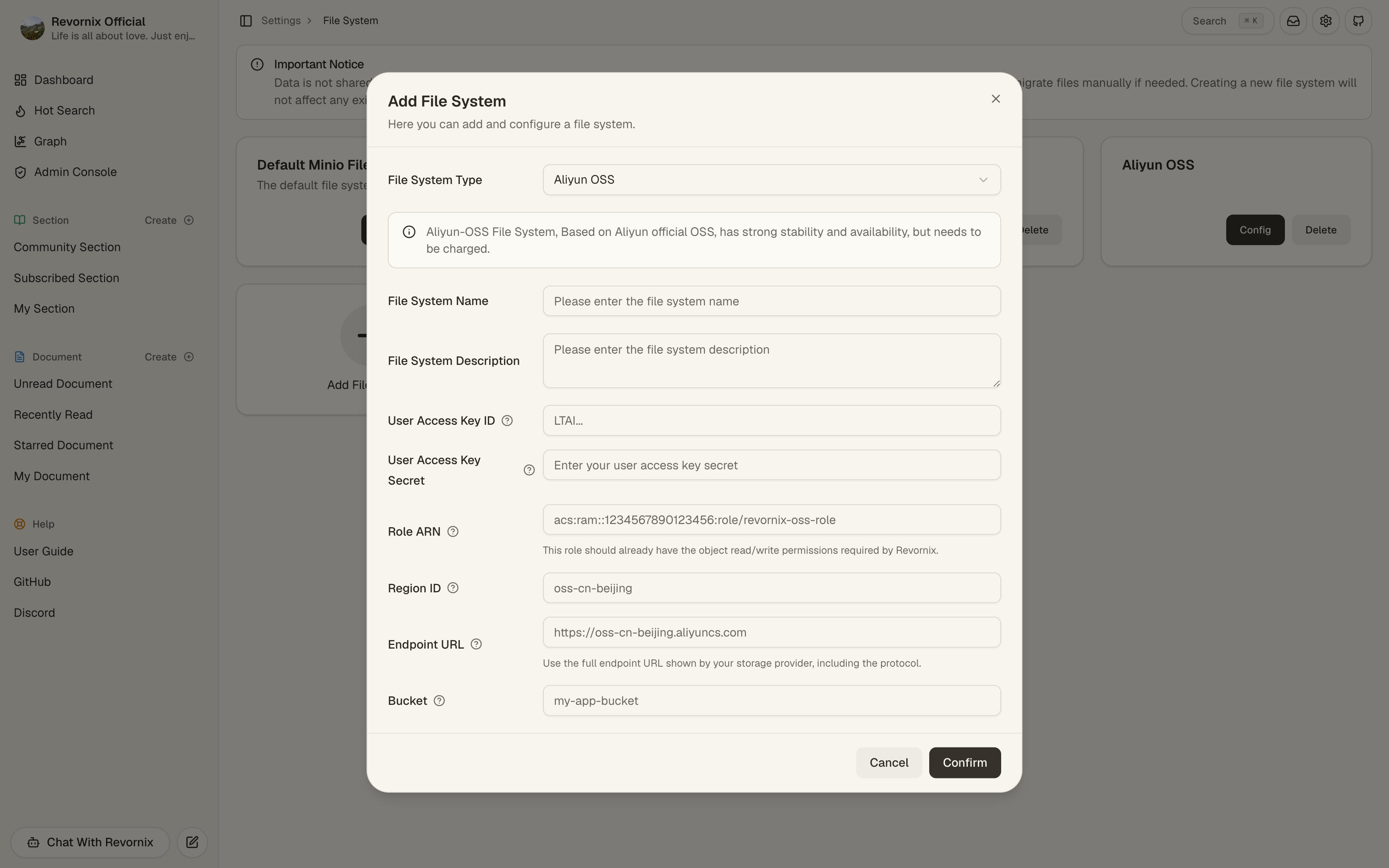
How to add
Adding a file system is simple: go to Settings, then in the file settings group click the Manage button next to My File System to open the file system management page. Click Add File System to add a new one.
Configuration details
Built-in file system
This is the default Revornix storage option and it does not require extra configuration.
Aliyun OSS
This storage method uses STS authorization to ensure least privilege. For Aliyun STS details, see the official docs: https://help.aliyun.com/zh/oss/developer-reference/use-temporary-access-credentials-provided-by-sts-to-access-oss
Steps
Creating an Aliyun OSS bucket is straightforward, so the steps are omitted here. The key requirement is that the assumed STS role has the object-access permissions Revornix needs.
- Create a user
Based on least-privilege, this user only needs permission to assume an STS temporary role. See step 5 for details.
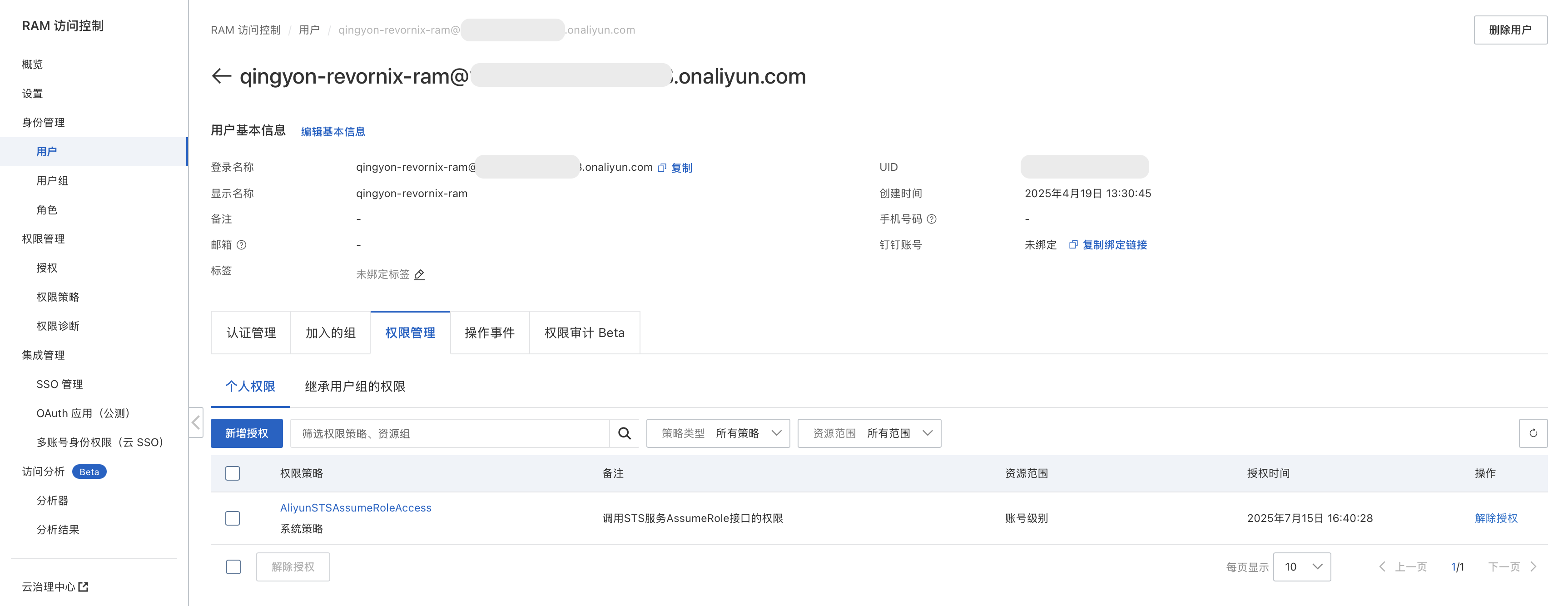
- Create a role
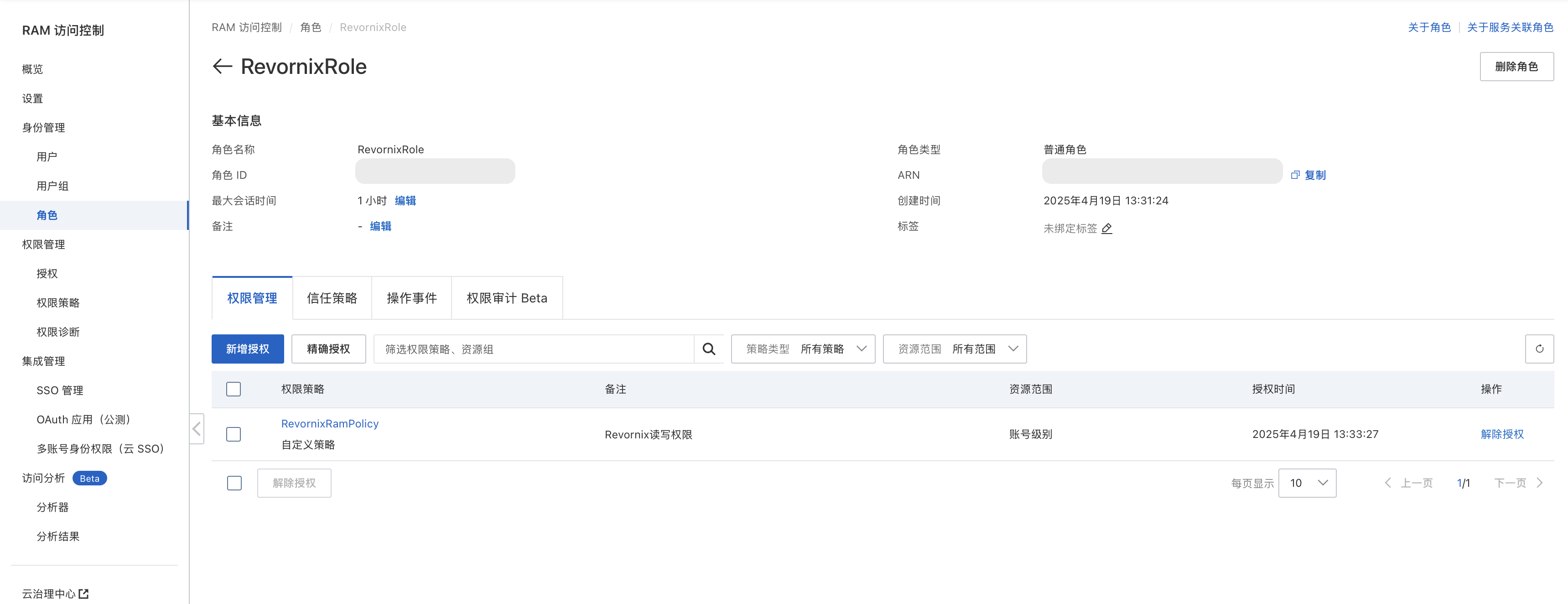
- Create a policy
Match the permissions and resource group in the image to your own bucket and user. Missing permissions will cause failures.
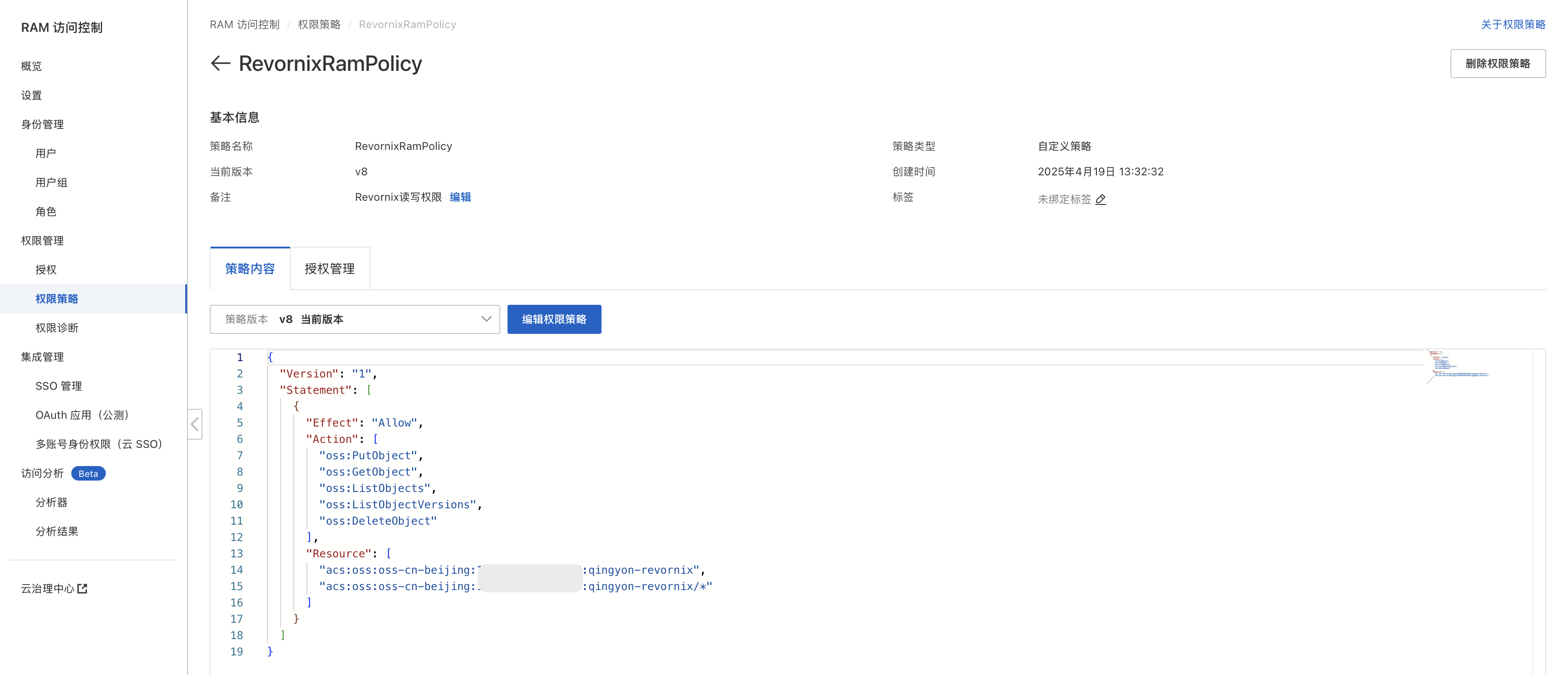
-
Attach the policy to the role
-
Grant the user permission to assume the role

Aliyun storage parameters in Revornix
| Parameter | Type | Description |
|---|---|---|
user_access_key_id | string | Aliyun AccessKey ID |
user_access_key_secret | string | Aliyun AccessKey Secret |
role_arn | string | ARN of the assumed role |
region_id | string | OSS bucket region |
endpoint_url | string | OSS endpoint URL |
bucket | string | OSS bucket name |
Amazon S3
This storage method uses STS authorization to ensure least privilege. For AWS S3 setup, see this Medium article: https://bharat-singh-06.medium.com/access-s3-bucket-through-sts-security-token-service-f6c613b5db5f
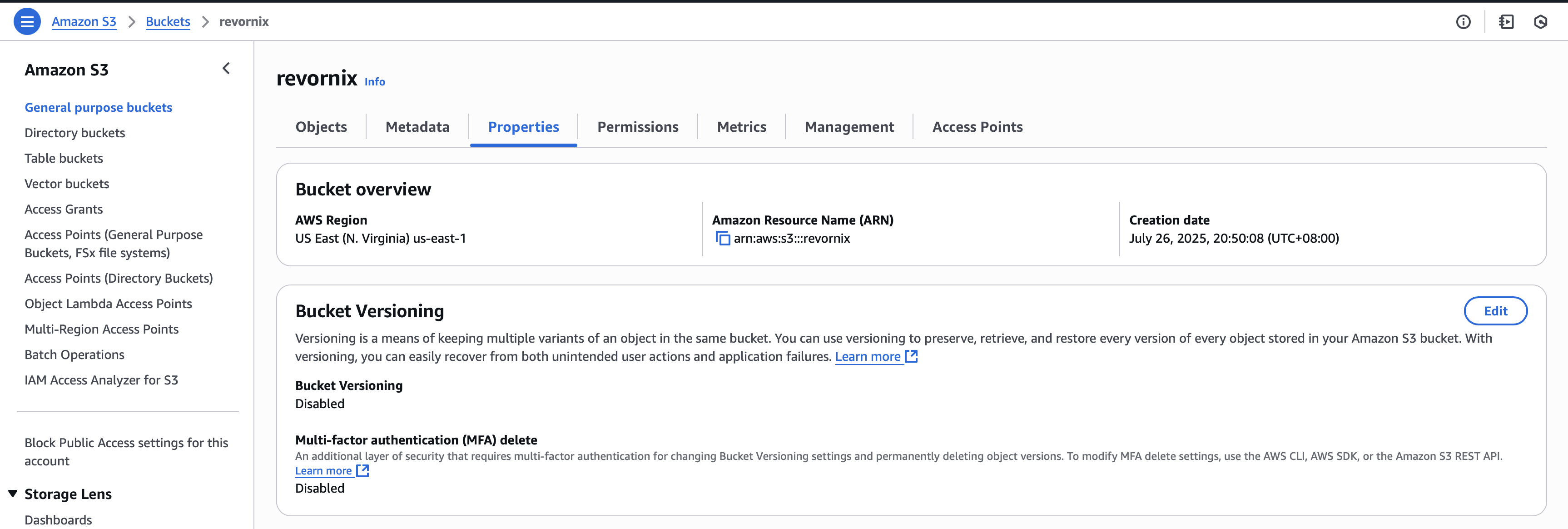
Steps
Creating an AWS S3 bucket is straightforward, so the steps are omitted here. The key requirement is that permissions and browser-upload CORS are configured correctly so Revornix can upload, read, and delete objects.
Bucket policy
{
	"Version": "2012-10-17",
	"Statement": [
		{
			"Sid": "Statement1",
			"Effect": "Allow",
			"Principal": "*",
			"Action": "s3:GetObject",
			"Resource": "arn:aws:s3:::your_bucket_name/*"
		}
	]
}
CORS
[
	{
		"AllowedHeaders": ["*"],
		"AllowedMethods": ["POST", "GET"],
		"AllowedOrigins": ["*"],
		"ExposeHeaders": ["ETag"],
		"MaxAgeSeconds": 3000
	}
]- Create a user
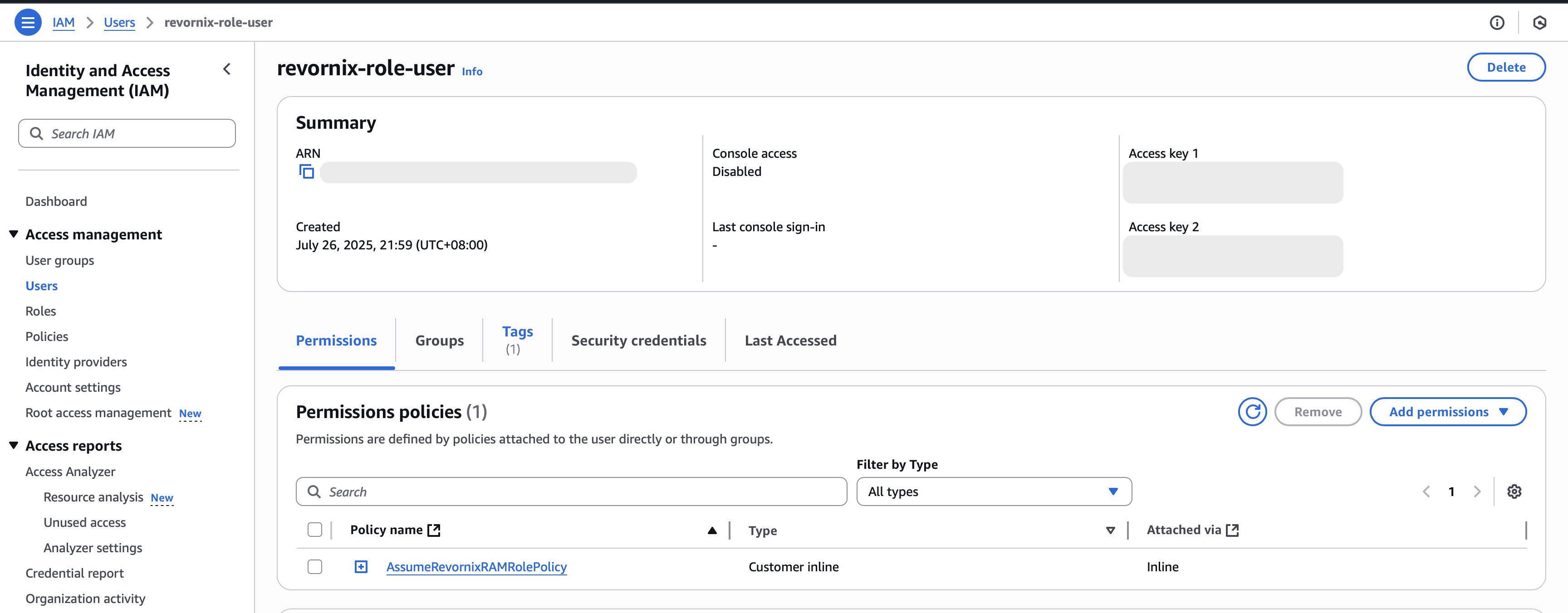
- Create a role
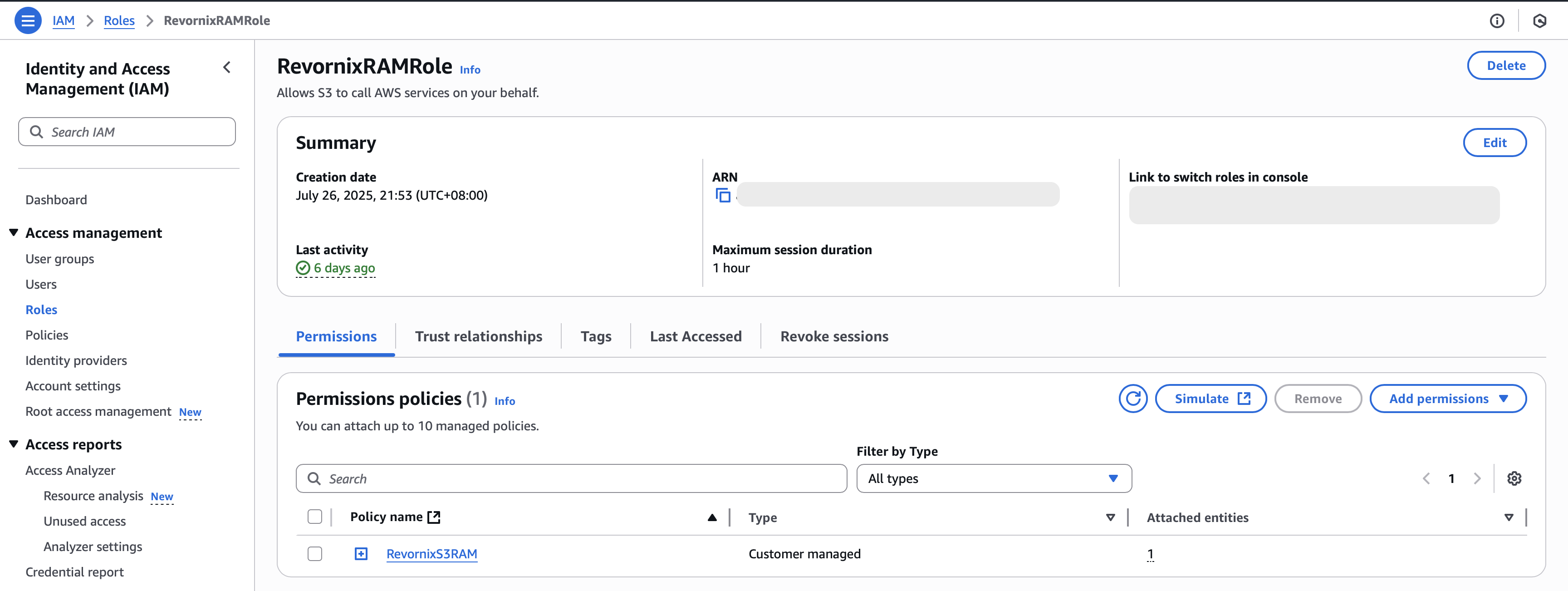
- Create a policy
Match the permissions and resources exactly as shown, and adapt to your resource group.
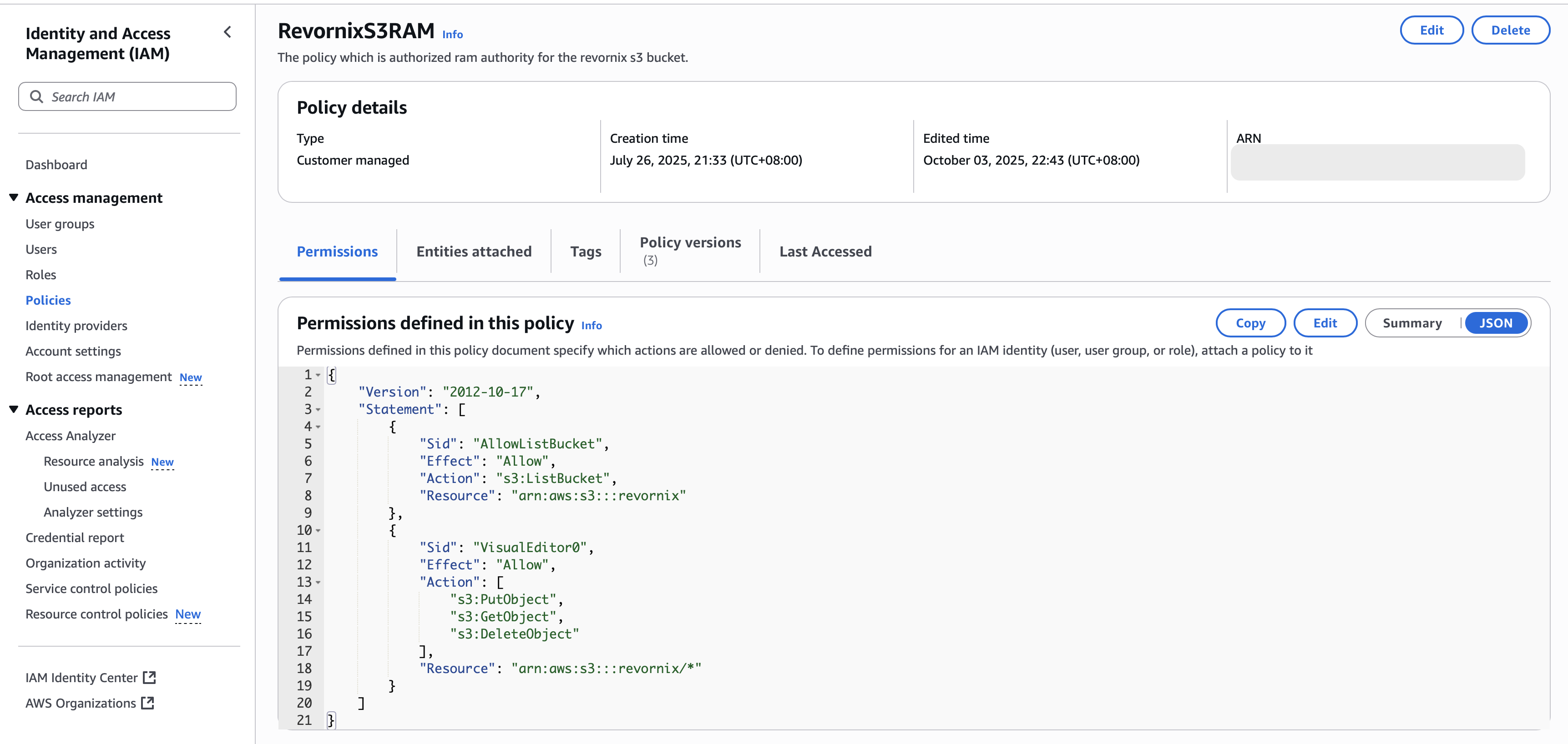
- Attach the policy to the role

- Grant the user permission to assume the role

AWS S3 storage parameters in Revornix
| Parameter | Type | Description |
|---|---|---|
role_arn | string | ARN of the assumed role |
user_access_key_id | string | User AccessKey ID |
user_access_key_secret | string | User AccessKey Secret |
region_name | string | Bucket region |
bucket | string | Bucket name |
Generic S3-compatible services
Any service that supports the S3 protocol can use this method.
This method requires credentials with full object-storage permissions, including upload, download, delete, and list. It works best as a compatibility option for S3 services that are not covered by the dedicated providers above.
| Parameter | Type | Description |
|---|---|---|
user_access_key_id | string | AccessKey ID |
user_access_key_secret | string | AccessKey Secret |
region_name | string | Bucket region |
endpoint_url | string | Bucket endpoint URL, including the https:// prefix |
bucket | string | Bucket name |
Default file system and switching
- Users can install multiple file systems, but uploads and generated assets always use the selected default file system.
- Switching the default file system does not migrate historical files automatically.
- Document uploads, audio uploads, document assets, section assets, and similar binary files all depend on the default file system.