Admin Console
The admin console provides a dedicated backend workspace at /admin, separate from the normal user workspace. It is intended for platform operators who need to inspect resources, maintain users, and clean up content.
Access control
Only ADMIN and ROOT users can access the admin console. Both the entry point and the route itself are protected, so regular users cannot enter it directly.
The admin console is implemented with its own Next.js route group and layout, separate from the standard workspace UI.
Modules
The current admin console includes the following modules:
- Overview: a landing page with entry points into the main admin modules
- User management: browse, filter, inspect, create, update, and delete users
- Document management: browse, search, inspect, and delete documents, with direct links to real document detail pages
- Section management: browse, search, inspect, and delete sections, with direct links to real section detail pages
- User notification management: manage notification tasks for a specific user
User management
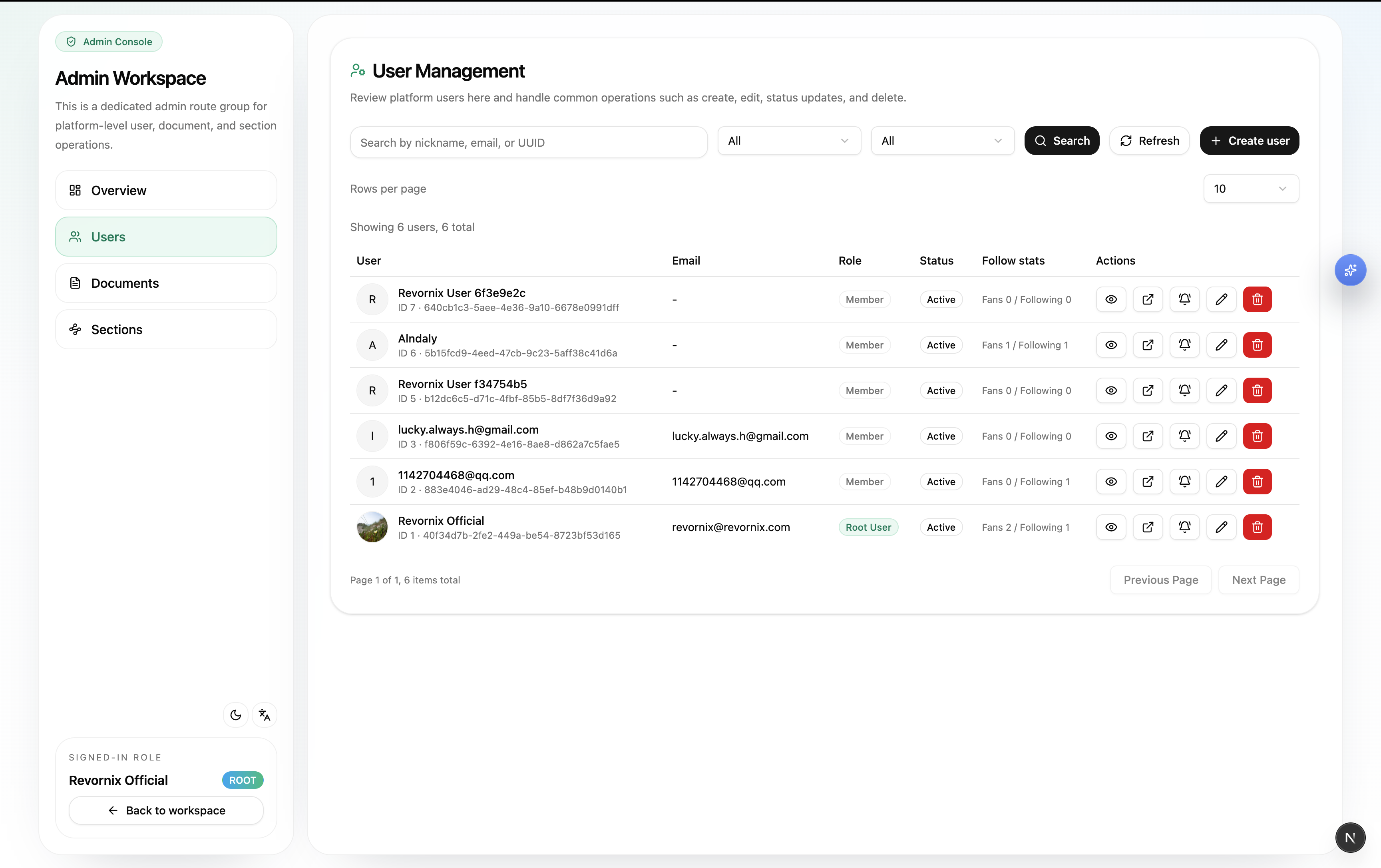
The user management page currently supports:
- Searching users by keyword such as nickname or email
- Filtering by role and status
- Paginated browsing with page size switching:
10 / 20 / 50 - Creating users
- Updating core profile fields, including nickname, email, role, status, slogan, and avatar
- Deleting users
- Viewing user details
- Jumping to the real user detail page at
/user/detail/[id] - Viewing recent login information such as last login IP and last login time
- Viewing the user’s current remaining quota and points ledger
- Opening the notification management page for that user
Avatar management uses real image upload and preview instead of a manual path field.
All create, update, and delete actions require confirmation before submission.
Document management
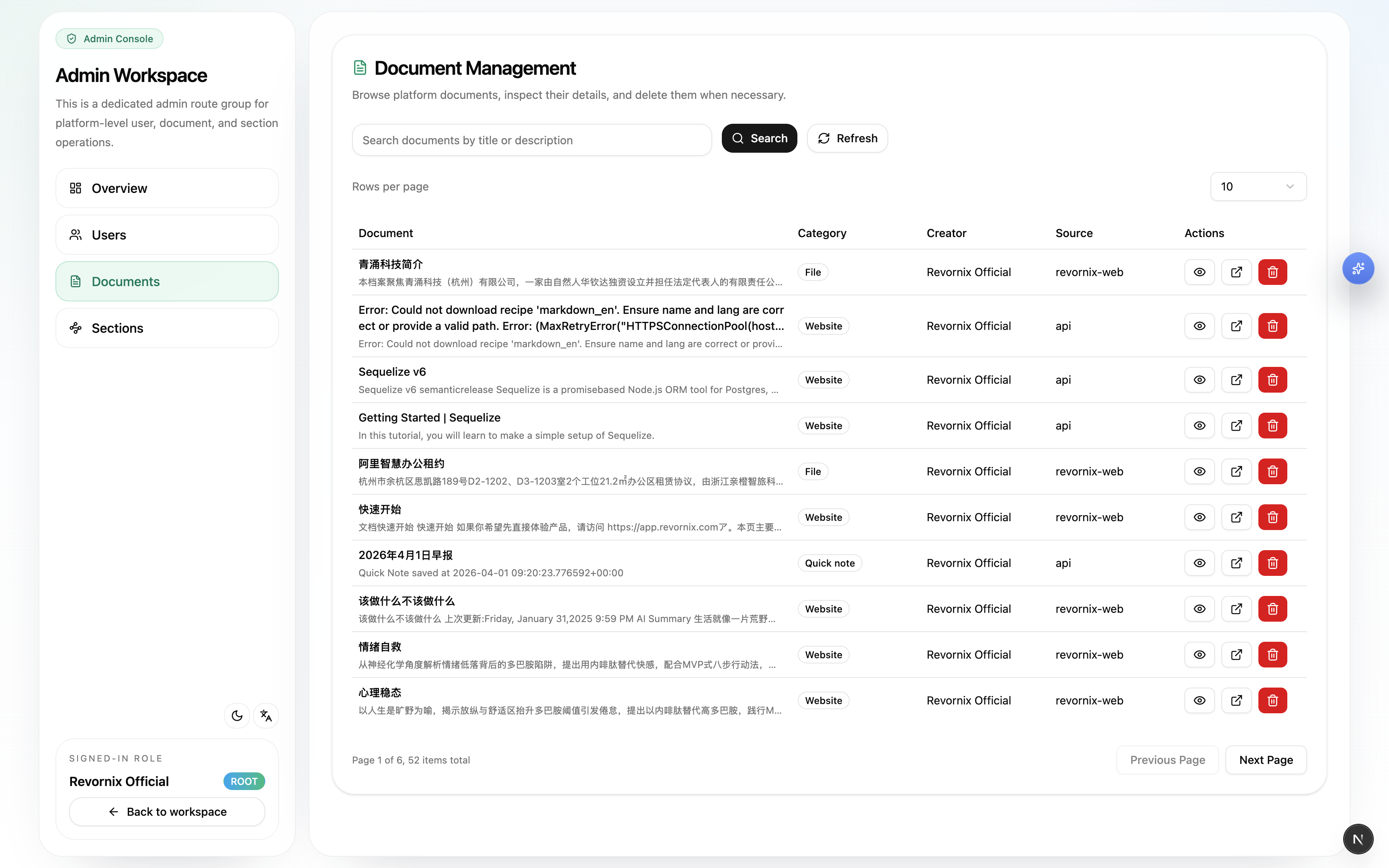
The document management page currently supports:
- Searching documents by title or description
- Paginated browsing with page size switching:
10 / 20 / 50 - Viewing document summary information
- Deleting documents
- Jumping directly to the real document detail page at
/document/detail/[id]
Long titles are truncated in the list so they do not break the admin layout.
Section management
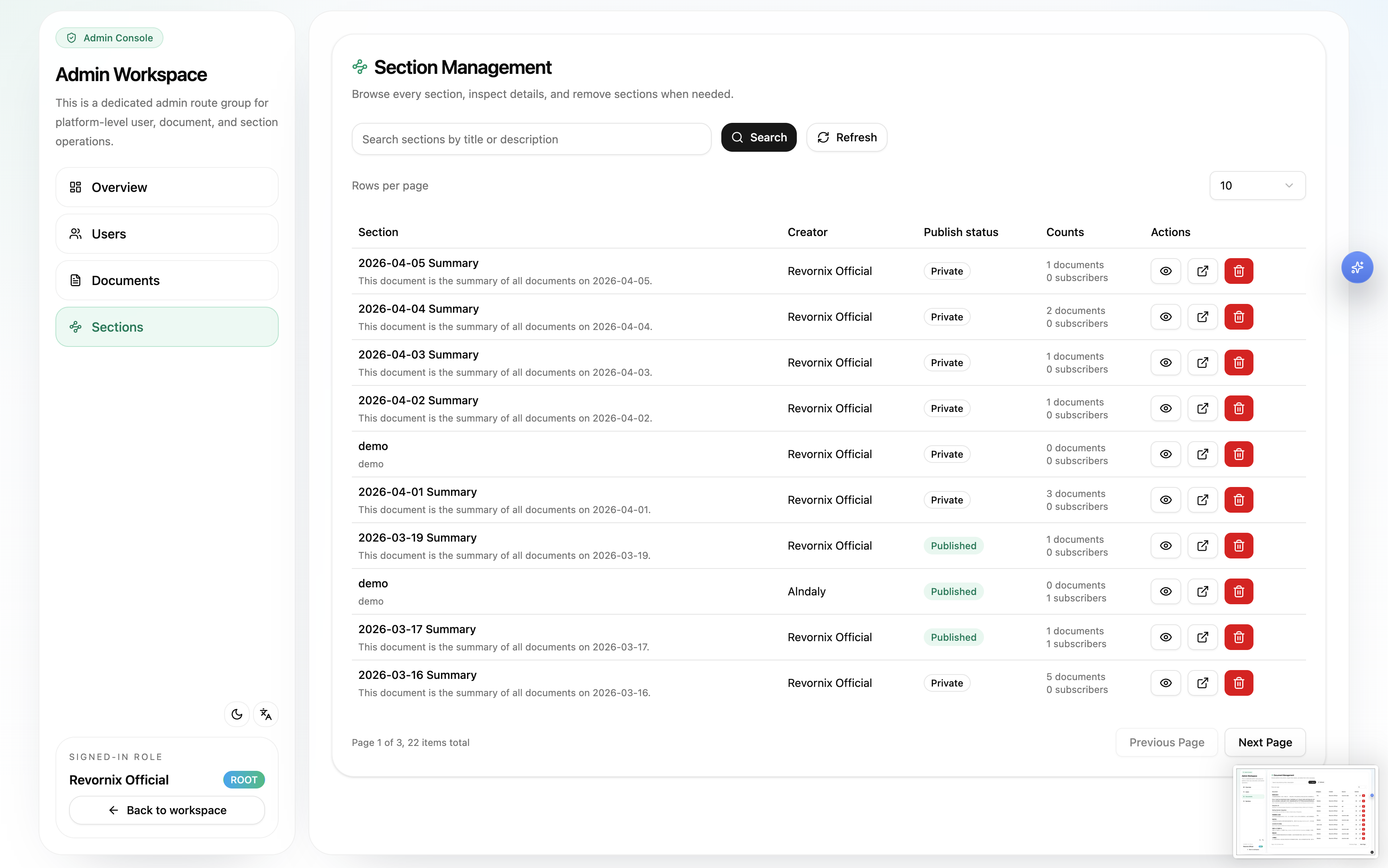
The section management page currently supports:
- Searching sections by title or description
- Paginated browsing with page size switching:
10 / 20 / 50 - Viewing section summary information
- Deleting sections
- Jumping directly to the real section detail page at
/section/detail/[id]
User notification management
Admins can open notification management for a specific user from the user management page at /admin/users/[id]/notifications.
This page is focused on maintaining notification tasks for that user and currently supports:
- Browsing that user’s notification task list
- Paginated notification task viewing
- Creating notification tasks
- Updating notification tasks
- Deleting notification tasks
- Enabling or disabling notification tasks
- Selecting from the user’s currently usable notification sources and targets inside the form
- Uploading a real cover image for the notification content instead of entering an image path manually
The notification task form uses a sticky header, sticky footer, and a scrollable middle content area, which makes it more suitable for dense admin workflows.
Interaction conventions
The current admin console follows these interaction rules:
- List pages generally support refresh, search, pagination, and page-size switching
- Write operations such as create, update, and delete require confirmation
- Users, documents, and sections can all jump from the admin console to their real detail pages
- Admin pages favor tables and explicit action columns for higher-density operations
Relationship to the normal settings page
Regular users still manage their own notification sources, targets, and tasks from the settings page. The admin console adds the ability for an administrator to inspect and adjust a target user’s notification task configuration directly.
If you want the standard end-user notification flow, continue with Notification Management.