Section Sharing and Co-creation
The section sharing mechanism is one of the core features of the section platform. It allows users to share their section content with other users or make it fully public. This increases engagement and interaction, and helps users promote their knowledge content.
Sharing methods
Section sharing typically includes the following methods:
- Invite specific users and grant permissions.
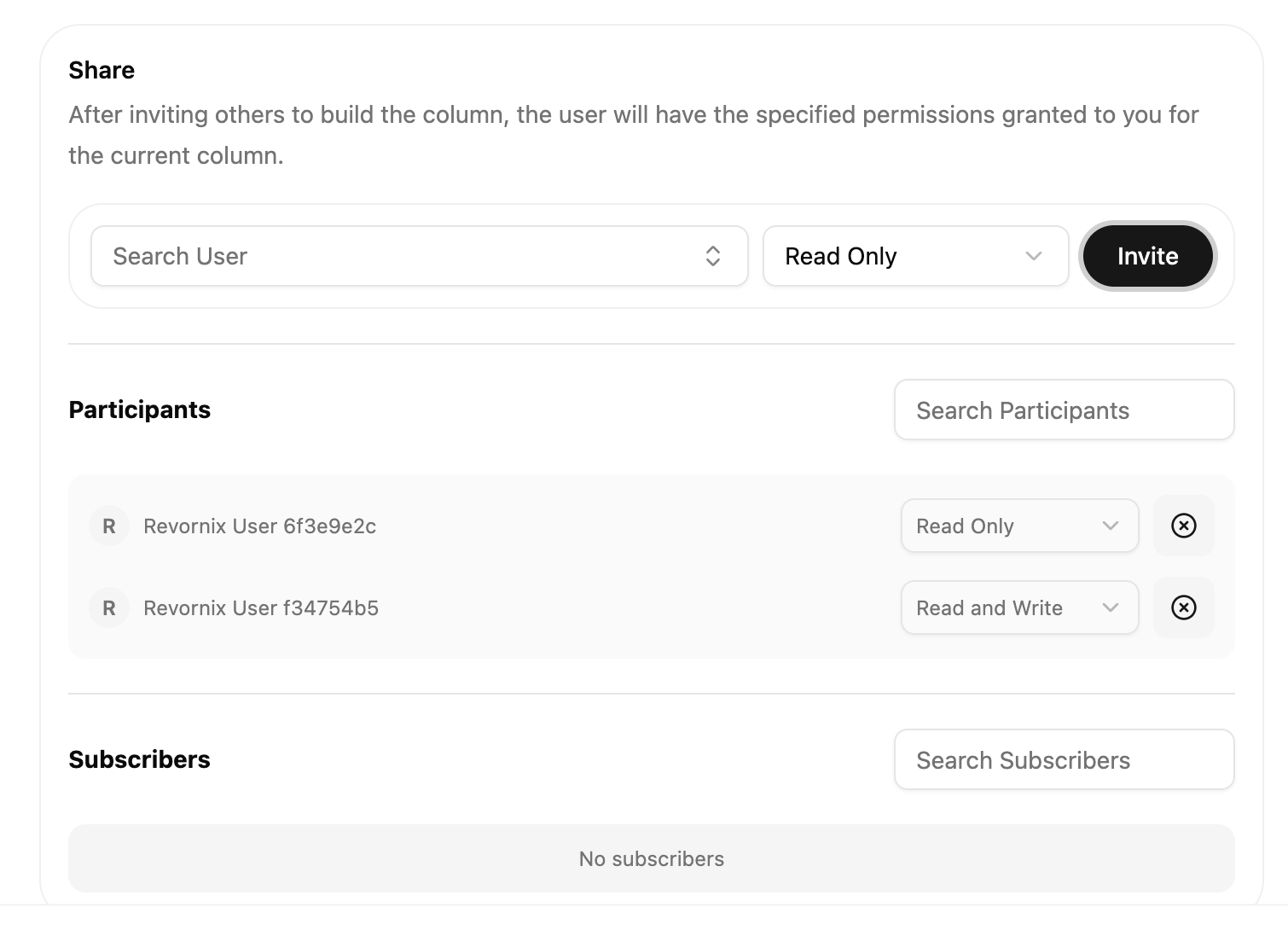
You can click the share button at the bottom of a section, search for users on the same platform, select shared documents, and grant permissions. There are three permission levels:
- Full access (FULL_ACCESS): on top of read-write capabilities, can invite new members, approve join requests, and manage members the user has personally invited or approved.
- Read-write (READ_AND_WRITE): can view the section, edit section metadata (title, description, cover, labels, auto podcast / illustration toggles), edit Markdown bodies of documents in the section, add documents to the section, and retry failed document processing.
- Read-only (READ_ONLY): can view, take notes, star, comment, and use AI Q&A; cannot edit the section or its contents.
Identity and capability matrix
Identity expresses only the relationship (creator / collaborator / subscriber); permission expresses only the collaboration capability (FULL_ACCESS / READ_AND_WRITE / READ_ONLY). Concrete capabilities are split as follows:
| Action | Creator | FULL_ACCESS | READ_AND_WRITE | READ_ONLY |
|---|---|---|---|---|
| Read, comment, note, star, AI Q&A | ✓ | ✓ | ✓ | ✓ |
| Edit section metadata (title / description / cover / labels / auto toggles) | ✓ | ✓ | ✓ | ✗ |
| Add documents to section, retry failed document processing | ✓ | ✓ | ✓ | ✗ |
| Invite new members / approve join requests | ✓ | ✓ | ✗ | ✗ |
| Modify or remove members | All members | Only members they invited / approved | ✗ | ✗ |
| Trigger whole-section processing / generate PPT / generate podcast | ✓ | ✗ | ✗ | ✗ |
| Publish / unpublish | ✓ | ✗ | ✗ | ✗ |
| Delete the section | ✓ | ✗ | ✗ | ✗ |
- Publish to the public network: users can publish their section content publicly. This helps promote content and provides more learning resources. Once published, other users can find the section in the community list via search. High-quality sections may also be indexed by search engines based on user traffic, increasing exposure.
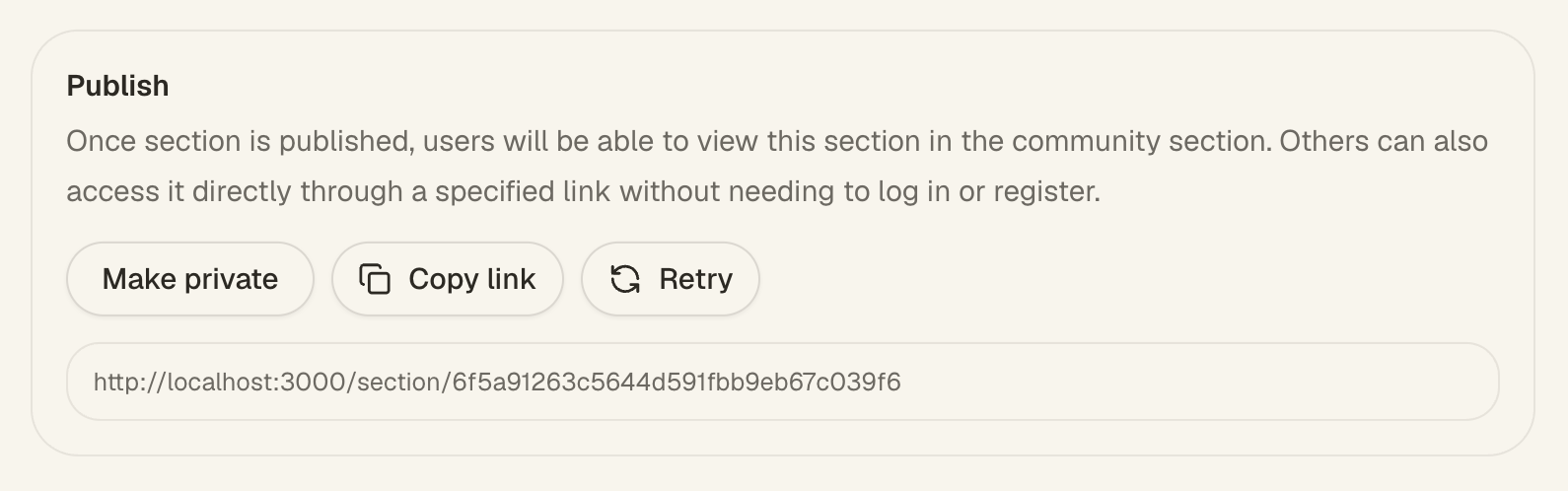
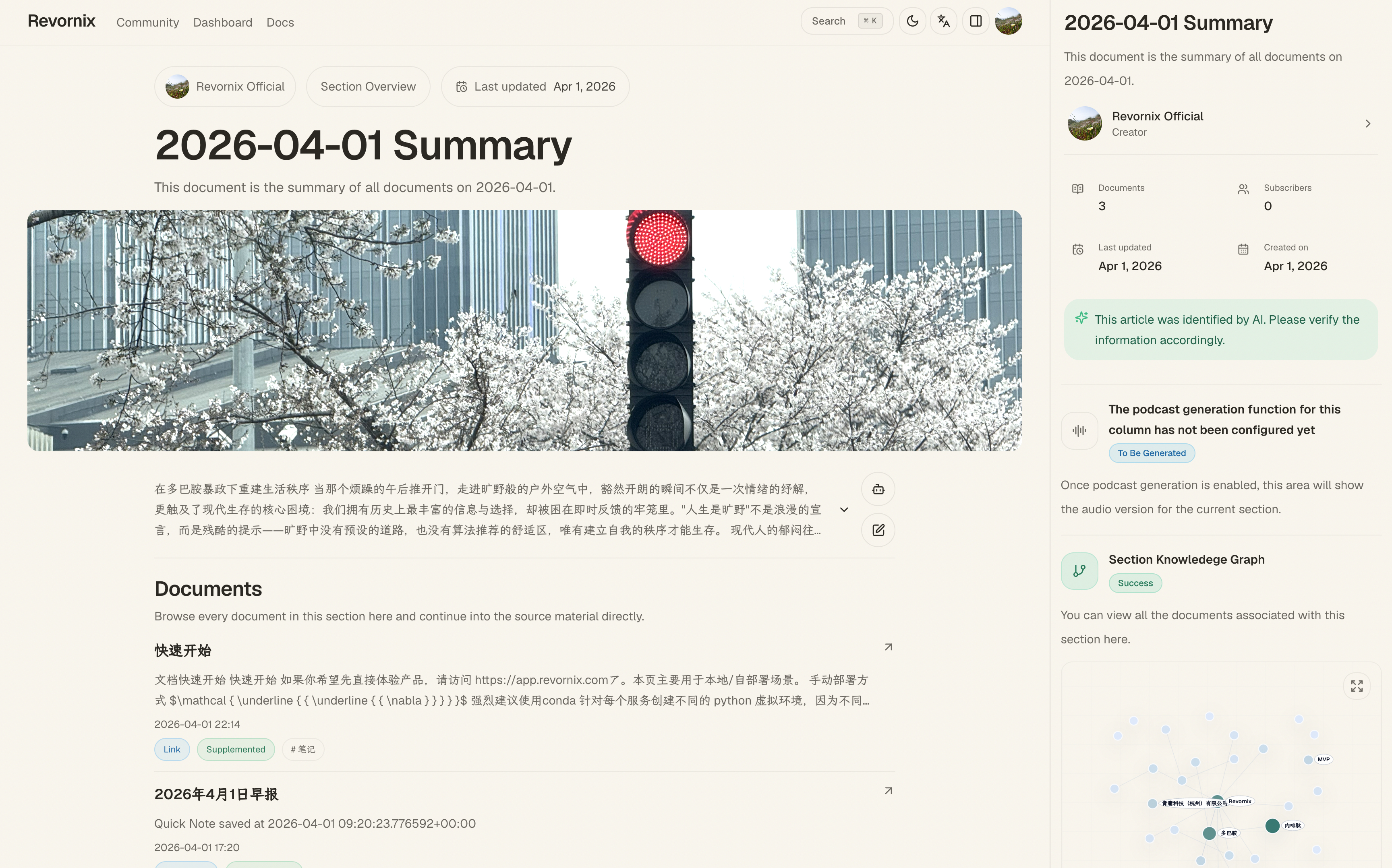
Revornix provides a refresh mechanism so users can regenerate the public URL unlimited times. Click the refresh button in the publish dialog and a new URL is created each time. The public view looks like this:
Community and public SEO pages
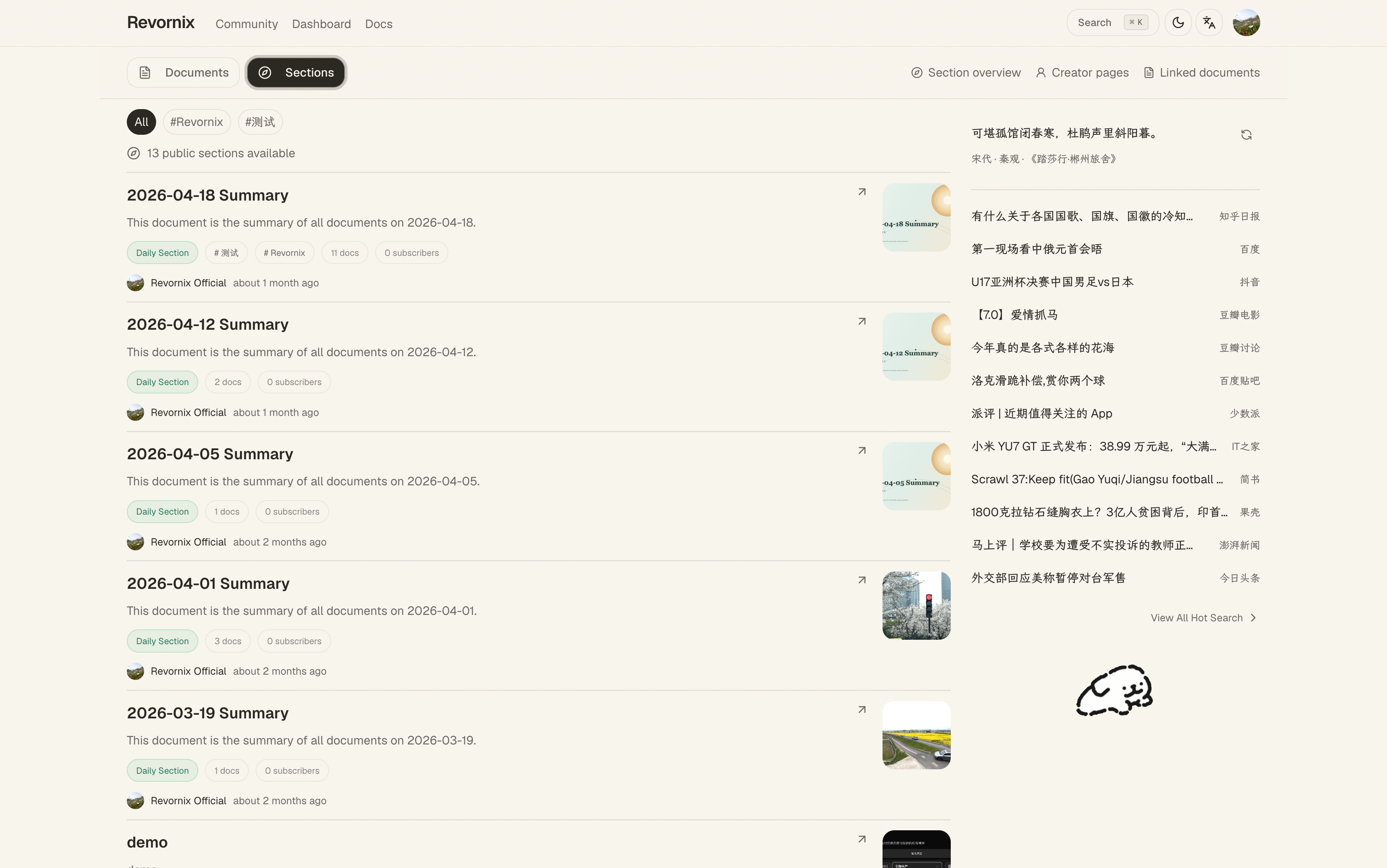
Once a section is published, it becomes part of the public community surface, which is organized into multiple page layers:
- Community page:
/community, used to browse and search published sections and documents - Public section page:
/section/[publish_uuid], used to display the public detail view of a published section - Public document page:
/document/[id], used to display the public detail view of a published document - Public user page:
/user/[id], used to display a creator profile and that creator’s published sections - Public hot-search page:
/hot-search, used to browse normalized trend cards without entering the private workspace
The community page shows:
- Tabs for public sections and public documents
- Public label filters for narrowing the current tab
- Result counts and context for the current result set
- A keyword search entry
- Public section or document cards
The public section page shows:
- Section title, description, cover, labels, creator, and update time
- Public metrics such as document count, subscriber count, and comment count
- The section Markdown body
- Published podcast information
- Section graph content
- Related document lists
- Comment and subscribe entry points
The public section page uses the generated publish_uuid as its external identifier. As long as the published URL remains valid, external visitors can open the section directly.
Search and discovery
The community page supports keyword search, public label filtering, and pagination across public sections and public documents. Each public section card presents:
- The section cover and title
- The description and labels
- The creator avatar and nickname
- Document and subscriber counts
- A subscribe button
Document results expose the title, description, labels, creator, and related public navigation. Clicking the creator avatar or nickname opens the corresponding public user page, where visitors can continue exploring that creator’s public profile and published sections or documents.
Subscription

After a section is published, other users can view it and subscribe. Subscribing is simple: click the Subscribe button in the section action bar.
After subscribing, the section appears in the Subscribed Sections list in the left menu, making it easy to track updates.
If you also configure notification tasks, you can pair section subscriptions with events such as SectionProcessCompleted, SectionContentUpdated and SectionSubscribed, and deliver those updates to email, Feishu, DingTalk, Telegram, or Apple devices.